4K Vs 1080p In Practice
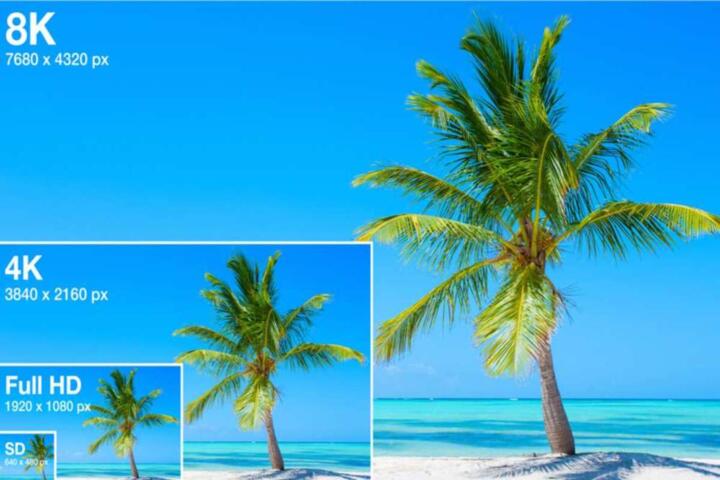
4K and 1080p describe pixel counts, not picture quality by themselves. A 1080p frame is 1920×1080 pixels, while 4K is commonly 3840×2160 pixels, which is about 4× the pixel area. That extra pixel density can reduce visible softness when the display is large enough and the viewing distance is short enough. It also gives video encoders more pixels to place detail, but compression still limits how much fine texture survives. If the source is low quality or heavily compressed, the display cannot recreate detail that never arrived.
Resolution matters most when you see the same content at the same bitrate on the same screen and the only change is the pixel grid. In real setups, that rarely happens because streaming services, game engines, and cameras often change bitrate, sharpening, and scaling behavior along with resolution. For example, a streaming app might switch from 1080p at 8–10 Mbps to 4K at 15–25 Mbps, so the 4K look can improve because of higher bitrate rather than resolution alone. On a PC, the GPU may also apply different scaling filters when switching modes, which can affect perceived sharpness.
One practical way to think about it: if your eyes can’t resolve individual pixels at your viewing distance, the extra pixels mostly become a scaling exercise. If your eyes can resolve them, then 4K can reduce the “screen-door” look and make edges and textures appear steadier. A 55-inch TV at about 2 meters often sits near the boundary where many viewers start noticing differences, while a 32-inch monitor at 0.7 meters can show the benefit sooner. Your room lighting, eyesight, and content type shift that boundary.
Common Misreads And Dependencies
People often assume that a 4K label guarantees a sharper image, but the chain includes capture, encoding, transport, decoding, and display processing. A 4K TV receiving a 1080p signal must upscale, and upscaling quality varies by TV model and settings. Some TVs use motion-adaptive scaling and edge-preserving filters, while others apply simpler sharpening that can create halos around high-contrast edges.
Another frequent mistake is comparing resolutions while ignoring compression. Streaming video uses codecs such as H.264/AVC, H.265/HEVC, or AV1, and the encoder chooses how to spend bits across the frame. When the encoder uses the same bitrate budget, higher resolution can reduce artifacts in some areas while increasing blockiness in others. When the encoder uses a higher bitrate for 4K, the improvement may come from bitrate rather than pixel count. This is why two “4K” sources can look different: one might be encoded carefully, another might be upscaled from a low-quality master.
Display scaling also changes the outcome. If you watch 1080p content on a 4K monitor, the TV or monitor scales it to its native grid. Scaling can be done with nearest-neighbor, bilinear, bicubic, or more advanced methods that try to preserve edges. The result depends on whether the content is letterboxed, whether the aspect ratio is handled correctly, and whether the display switches to a “game mode” or “film mode” that changes processing. I’ve seen settings on firmware versions like 1.0.3 (yes, the version number matters) where “Ultra” sharpening increased ringing on subtitles, making the image look less crisp than a moderate setting.
Finally, motion clarity can dominate perceived sharpness. A 4K image can still look soft if the display has slow pixel response, aggressive noise reduction, or motion interpolation artifacts. Many viewers interpret motion blur as low resolution, even when the pixel grid is fine. That’s why a 1080p signal on a fast gaming display can look “cleaner” than a 4K signal on a TV with heavy post-processing.
How To Decide And Test
Match Screen Size And Distance
Start with a simple check: measure your viewing distance from your eyes to the screen, then compare it to the screen diagonal. Higher resolution becomes more noticeable as the screen gets larger or you sit closer. For many people, the jump from 1080p to 4K becomes clearer around the point where individual pixels are no longer obvious. If you sit far enough that you can’t resolve pixel structure, 1080p can look nearly as detailed, especially with good upscaling.
For monitors, the “native” experience matters. If you use a 4K monitor at 100% scaling in Windows, text can be tiny; many people switch to 125% or 150% scaling, which changes how the OS maps pixels. That scaling can preserve sharpness for text but may blur fine video details depending on the player and renderer. A practical test is to open a high-detail 4K demo clip and a 1080p clip, then compare edge clarity on static elements like building lines or hair strands.
Check Source Quality And Bitrate
Resolution without bitrate is a common trap. In streaming apps, look for playback stats that show codec and bitrate, or use the app’s “quality” indicator if it exists. If your 4K playback runs at a much higher bitrate than 1080p, the improvement can be real even when the encoder is the main driver. If your 4K playback uses a similar bitrate to 1080p, the extra pixels may not translate into more detail.
On local files, compare the actual encoding. A 1080p file encoded with a high bitrate and a modern codec can look better than a 4K file encoded with a low bitrate. Tools like MediaInfo can show codec, profile, and bitrate for both versions. I’ve seen cases where a “4K” upload used a high compression setting that produced smeared gradients, while the 1080p version looked cleaner because it had more bits per pixel.
Use Correct Display Settings
TV and monitor processing can either help or harm. For video, try turning off or reducing extra sharpening and noise reduction, then compare with a neutral picture mode. For gaming, use the mode that preserves low latency and avoids heavy post-processing; some displays label this “Game” or “PC” mode. If subtitles look crisp but faces look slightly smeared, the culprit might be motion smoothing or noise reduction rather than resolution.
On PC, confirm that the player is outputting the intended resolution. A mismatch can trigger double scaling: the player scales to an intermediate size, then the display scales again. That can soften fine detail. In VLC, for instance, the output resolution and scaling settings can affect the result, and the “video output” path can differ between versions (I once compared VLC 3.0.x builds and saw different scaling behavior on the same GPU).
Test With Real Content Types
Resolution benefits vary by content. Animation with clean edges often looks sharp at 1080p, while film grain and low-light scenes can show compression artifacts more than pixel density. Sports can reveal motion artifacts, and nature footage can reveal banding or smearing in gradients. Use a short test playlist that includes: a static scene with fine textures, a fast motion scene, and a dark scene with shadows.
When you compare, keep brightness and contrast consistent. Auto-dimming and dynamic contrast can change perceived sharpness by altering local tone mapping. If your display supports it, disable “dynamic” contrast and set a stable picture mode for the test. Small changes in tone mapping can make 4K look better even when the pixel detail is similar.
Educational Case Examples
Streaming Switch On A TV
An anonymized viewer watches a series on a 55-inch 4K TV at about 2.2 meters. The app shows 1080p playback around 9 Mbps and 4K playback around 20 Mbps. On the 4K stream, edges on subtitles look less jagged and textures on walls show fewer compression blocks. The viewer also notices that the TV’s “sharpness” setting creates halos on high-contrast captions, so they reduce sharpening from a high value to a moderate one. The improvement comes from both higher resolution and higher bitrate, while the TV’s processing settings decide whether the image looks clean or artificial.
PC Monitor With Mixed Files
An anonymized user edits and plays video on a 27-inch 4K monitor at roughly 0.8 meters. They compare a 1080p H.264 file and a 4K HEVC file, both downloaded from different sources. The 4K file looks sharper on bright edges, but the dark scenes show more banding and smearing, which the user traces to a lower bitrate encode. After switching to a higher-bitrate 4K encode, the dark gradients improve and the overall look becomes more consistent. The lesson is that resolution interacts with codec and bitrate, so the “4K file” label alone does not predict perceived quality.
Resolution Checklist And Tradeoffs
| Decision Factor | When 4K Helps More | When 1080p Can Look Close | What To Check |
|---|---|---|---|
| Viewing Distance | You sit close enough to notice pixel structure | You sit far enough that pixels blend | Measure distance and test with static fine detail |
| Source Bitrate | 4K stream/file uses more bits per second | 1080p uses a high bitrate encode | Check playback stats or MediaInfo bitrate |
| Upscaling Quality | TV/monitor scales 1080p cleanly | Scaling artifacts are minimal | Compare subtitles and edges in the same scene |
| Motion Processing | Display has low blur and stable motion | Motion artifacts dominate less | Test fast pans and sports; adjust motion settings |
Step-by-step checklist for a fair comparison: pick one scene with fine textures, one scene with fast motion, and one dark scene; play both 1080p and 4K versions using the same app or player; keep picture mode and sharpening settings fixed; confirm the displayed resolution in the player or device info; then judge clarity on edges and gradients rather than on “overall wow.”
Practical Mistakes To Avoid
Buying a 4K display and then leaving it in a processing-heavy mode can erase the benefit. Noise reduction and aggressive sharpening can create ringing around text and smear small details in motion. If you notice “crunchy” edges on subtitles, reduce sharpening first, then revisit noise reduction.
Another mistake is assuming that a device will always deliver the advertised resolution. Some streaming setups cap quality based on network conditions, and some games render at dynamic resolutions that change frame by frame. If a console or PC reports a different output resolution than expected, the display may upscale from a lower internal render size.
People also compare different content versions. A 4K remaster might use a different color grade, different grain treatment, or different compression settings. That can change perceived sharpness and contrast, making it hard to attribute improvements to resolution alone. For testing, use the same title and the same source when possible, then switch only the playback quality setting.
Finally, ignoring scaling and aspect ratio can cause subtle blur. If letterboxing or overscan occurs, the display may resample the image in a way that softens detail. Check whether the player outputs the correct aspect ratio and whether the display uses “Just Scan” or “Screen Fit” rather than stretching.
FAQ
Will 4K Look Sharper At Any Distance?
4K can look sharper when your viewing distance lets you resolve pixel-level detail and when the source provides enough bitrate and clean encoding. If you sit far enough that pixels blend, 1080p often appears close, especially with good upscaling.
Does A 4K TV Automatically Improve 1080p Content?
A 4K TV must upscale 1080p to its native grid, and the result depends on the TV’s scaling algorithm and settings. Some TVs add sharpening artifacts, while others preserve edges more naturally.
Is 4K Always Better For Streaming?
Streaming quality depends on codec and bitrate. A low-bitrate 4K stream can look worse than a high-bitrate 1080p stream, so playback stats and codec information matter.
Do Games Need 4K To Look Good?
Games can look good at 1080p if the display has strong motion handling and the game maintains stable frame pacing. Many games also use dynamic resolution, so the rendered pixel count can vary during play.
How Can I Test Resolution Differences Fairly?
Use the same scene and the same player, switch only the playback quality, keep picture settings fixed, and compare edge clarity on static details plus motion clarity on fast pans. Checking the reported output resolution helps avoid accidental double scaling.
Author's Insight
Resolution is a measurable property of a video frame, but perceived sharpness depends on the full pipeline: capture, encoding, bitrate allocation, transport, decoding, scaling, and motion processing. When 4K improves the look, it often does so because it pairs higher pixel density with higher bitrate and better preservation of fine edges. When 4K fails to impress, the cause is usually compression limits, poor upscaling settings, or motion artifacts that dominate the viewer’s impression. A careful test with playback stats and fixed display settings usually reveals which factor is driving the difference.
Key Takeaways
4K helps most when you sit close enough to notice pixel-level detail and when the source is encoded with enough bitrate to preserve texture. 1080p can look very good when the encode is strong and the display scales it cleanly. Always compare using the same content and fixed picture settings, then judge edges, gradients, and motion rather than relying on the resolution label alone.