24 Vs 30 Vs 60 FPS
FPS means frames per second, a measure of how often a video image is updated. Higher FPS usually reduces motion stutter because each second contains more motion samples. The trade-off is that higher FPS often increases file size and can stress playback hardware, especially when combined with high resolution and heavy compression. In practice, the “best” FPS depends on the motion in the scene, the display refresh rate, and how the video was captured or edited.
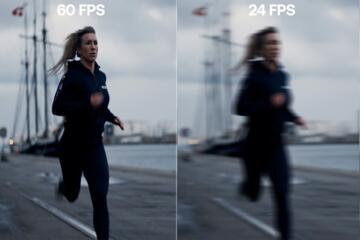
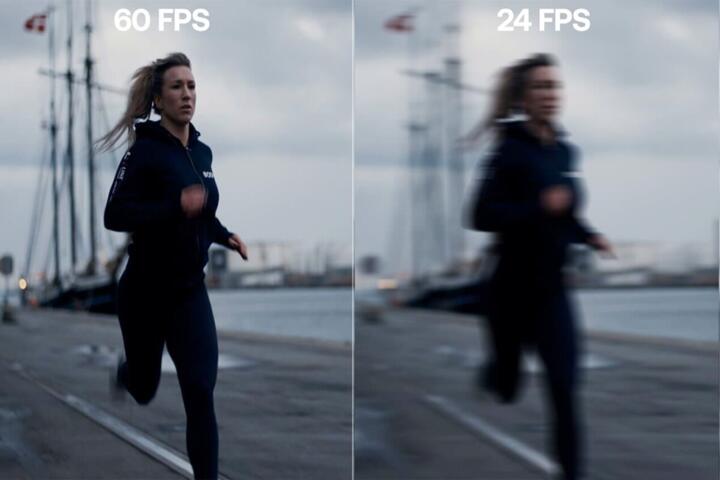
24 FPS is common in film because it matches a cinematic cadence and pairs well with a shutter angle that creates a particular motion blur look. 30 FPS is common in broadcast and many consumer capture workflows, where it balances smoothness and bandwidth. 60 FPS is common for sports, gaming, and many modern cameras because it reduces the visibility of motion stepping, especially on fast pans and fast-moving subjects.
One detail that often gets missed: FPS alone does not determine smoothness. Motion blur, frame pacing, and how the video is encoded (for example, variable frame rate versus constant frame rate) can change what you perceive even when the FPS number looks the same. I once compared two clips labeled “60 FPS” in a player that showed different frame pacing; the one with steadier timing looked calmer, even though both claimed the same FPS.
Main Frame Rate Pitfalls
People often assume that doubling FPS always doubles smoothness. That assumption breaks when the display refresh rate, the playback pipeline, or the capture method introduces judder, dropped frames, or uneven frame timing. A video can be tagged as 60 FPS yet still deliver uneven updates if frames arrive late or if the encoder struggles with complex motion.
Another common mistake is treating FPS as the only motion factor. Shutter speed (or shutter angle) strongly affects motion blur. A 60 FPS capture with a very fast shutter can look “crisper” but also more staccato, while a 24 FPS capture with a slower shutter can look smoother because blur spans more time. If you are comparing clips, you need to compare shutter behavior and not just FPS.
Supporting technologies matter too. Many displays use motion interpolation or frame blending, which can create artifacts like ghosting around moving edges. Some players also apply smoothing or “enhanced motion” modes that change the output. Even audio sync can be affected when a workflow converts between frame rates, especially when timecode handling is imperfect.
Finally, compression interacts with FPS. Higher FPS means more frames to encode per second, so the encoder may reduce quality per frame to keep bitrate within limits. That can increase blockiness or reduce detail in fast motion, which can look like “worse smoothness” even when the FPS is higher.
How To Choose A Frame Rate
Match Content To Motion
Choose FPS based on how much motion changes between frames. For mostly static scenes, 24 or 30 FPS often looks natural because the subject movement is limited, and the motion blur style can be consistent. For fast pans, sports, cycling, or anything with frequent direction changes, 60 FPS usually reduces visible stepping because each second contains more motion samples.
A practical rule: if you notice “stair steps” on edges during movement, higher FPS helps. If you notice “smear” or heavy blur, raising FPS alone may not fix it; you may need to adjust shutter speed or reduce motion blur in capture settings. On a phone, I’ve seen “60 FPS” clips that still looked smeary because the shutter was left in a low-light mode that prioritizes brightness.
Check Display And Playback
Playback smoothness depends on the display refresh rate and the player’s frame pacing. A 60 FPS video typically plays best on 60 Hz displays, while 24 FPS content often uses a 3:2 cadence on 60 Hz screens, which can introduce judder. If your display is 120 Hz, 60 FPS content can map more cleanly, and 24 FPS content may still show cadence artifacts depending on how the device handles it.
Frame pacing is the “when” of frame delivery, not just the “how many.” Some editing exports marked as 60 FPS can still stutter if the encoder produces uneven frame intervals. Tools like ffprobe (for example, version 6.x) can reveal whether the file uses constant frame rate or variable frame rate, which helps explain why two “60 FPS” files behave differently.
Plan For Bitrate And Storage
Higher FPS increases the amount of data per second, so you need enough bitrate to keep quality. If you export 60 FPS at the same bitrate target used for 30 FPS, the encoder often reduces detail or increases artifacts. That can make motion look noisier, especially in dark scenes with fast movement.
As a rough planning approach, treat 60 FPS as requiring more bitrate headroom than 30 FPS, and treat 30 FPS as requiring more than 24 FPS. Exact numbers depend on codec (H.264, H.265/HEVC, AV1), resolution, and scene complexity, so use a short test export and compare motion edges at normal playback speed.
If you are uploading, also consider platform limits. Many services accept 60 FPS but may transcode to a different profile, which can change quality and sometimes frame pacing. A quick test upload of a 10–20 second clip can reveal whether the platform preserves the intended motion look.
Use Consistent Capture Settings
Consistency matters more than chasing a single FPS number. If you record at 60 FPS, keep shutter behavior consistent across takes so motion blur stays predictable. If you record at 24 or 30 FPS, avoid mixing frame rates within the same timeline unless your editor handles conversion cleanly.
When converting between frame rates, the method matters. Simple frame duplication can reduce smoothness, while optical flow interpolation can create artifacts around fine textures like hair or fences. Many editors offer multiple conversion modes; the one that looks best depends on the type of motion and the tolerance for artifacts.
One small workflow detail: if your camera supports it, check whether it records in constant frame rate mode. Some devices default to variable frame rate in certain settings, and that can complicate editing and playback on strict players.
Case Examples For Real Use
Example: Indoor Sports Clip
A parent records a child’s indoor soccer practice in a gym with mixed lighting. The camera offers 30 FPS and 60 FPS. At 60 FPS, the ball’s fast direction changes look less “jumpy,” but the file size is noticeably larger and the shadows show more compression noise after upload. The final choice becomes 30 FPS with a slightly higher bitrate target for the export, because the motion looks acceptable and the image stays cleaner.
The lesson is not that 60 FPS is wrong; it’s that the capture-to-delivery pipeline decides the outcome. If the upload step transcodes aggressively, the extra frames can trade away detail, and the perceived motion quality may not improve.
Example: Talking Head With B-Roll
A creator records a talking head interview plus b-roll of a workshop. The talking head is mostly steady, while the b-roll includes quick hand movements and camera pans. The creator exports the interview at 24 FPS for a film-like cadence and exports b-roll at 60 FPS, then uses conversion tools to match the timeline. The result depends on the conversion method: a simple duplication approach can make pans feel uneven, while a motion-compensated approach can introduce subtle edge artifacts.
The practical takeaway is to test conversions on the exact motion you care about, not on a static test chart. A 15-second segment with a fast pan and a hand gesture can reveal whether the chosen conversion mode behaves well.
FPS Checklist And Trade-Offs
| Frame Rate | Motion Feel | Common Use | Typical Trade-Off |
|---|---|---|---|
| 24 FPS | Cinematic cadence; motion blur style often matches film look | Movies, narrative video, many cinematic exports | On 60 Hz displays, cadence can cause judder |
| 30 FPS | Smoother than 24 for many scenes; still shows stepping in fast motion | Broadcast-style capture, general consumer video | Less motion sampling than 60 FPS for fast action |
| 60 FPS | More motion samples; reduces visible stutter on fast movement | Sports, gaming, high-motion capture | Higher bitrate/storage needs; compression can reduce detail |
Step-by-step decision checklist:
- Identify the dominant motion type: mostly static, moderate movement, or fast direction changes.
- Check your target display refresh rate (60 Hz, 120 Hz, or other) and your playback device.
- Decide whether you can afford higher file size or bitrate for 60 FPS exports.
- Test a 10–20 second clip that includes the fastest motion you expect.
- Verify frame pacing and conversion behavior if you change FPS in editing.
- Re-check audio sync after any frame rate conversion, especially when using time-stretch tools.
Common Mistakes That Mislead
One mistake is comparing clips that use different shutter speeds. A 60 FPS clip with a fast shutter can look harsher than a 30 FPS clip with a blurier look, and the viewer may blame FPS for what is really a blur setting difference.
Another mistake is exporting 60 FPS at a bitrate target meant for 24 or 30 FPS. The encoder then spreads limited bits across more frames, which can increase macroblocking and reduce texture stability. The result can look like “worse quality” even though the motion sampling is higher.
People also forget about frame pacing. A file that reports 60 FPS can still stutter if it uses variable frame rate in a way the player struggles with. If you see periodic hitching, check whether the file is constant frame rate and whether the player is dropping frames.
Finally, avoid mixing frame rates without a plan. Converting everything to one timeline FPS can reduce surprises, but the conversion method matters. Some interpolation modes create artifacts around fine detail, and those artifacts can be more noticeable at higher FPS because motion is easier to track.
FAQ
Does 60 FPS Always Look Better?
Not automatically. 60 FPS reduces motion stepping, but compression and shutter settings can make the image look noisier or harsher, and frame pacing issues can cause stutter even when the FPS label is correct.
Why Does 24 FPS Look Jittery On 60 Hz?
Many 60 Hz displays map 24 FPS using a cadence that repeats unevenly across frames. That uneven mapping can create judder during pans, especially when motion is smooth and the camera moves steadily.
Is 30 FPS Good Enough For Action?
Often, yes for moderate action, but fast direction changes can still show stepping at 30 FPS. If you notice edge stutter during movement, 60 FPS usually improves perceived motion continuity.
What Happens When I Convert FPS?
Conversion can duplicate frames, drop frames, or interpolate motion. Each method changes motion blur and can introduce artifacts around detailed textures, so test on the specific motion you care about.
Does Higher FPS Increase File Size?
Usually. More frames per second mean more data to encode, so for the same codec and resolution you typically need higher bitrate to keep quality, which increases storage and bandwidth.
Author's Insight
FPS is a sampling rate for motion, but perceived smoothness depends on timing consistency, shutter blur, and compression. When people report “60 FPS looks worse,” the cause is often bitrate pressure, a different shutter setting, or uneven frame pacing rather than the FPS value itself.
For practical decisions, short tests beat assumptions: export a 10–20 second segment that includes fast motion, then compare on the same device you will watch on. If you use frame rate conversion, verify the conversion mode and check for audio sync drift after editing.
Tools like ffprobe can help diagnose constant versus variable frame rate and timing irregularities, which explains many “it stutters” complaints that do not match the FPS label.
Key Takeaways
- 24 FPS suits cinematic cadence and often pairs with a film-like motion blur style, but it can show judder on 60 Hz displays.
- 30 FPS is a middle ground for general video, though fast motion can still look stepped.
- 60 FPS reduces motion stepping, but it increases bitrate and storage needs and can worsen compression artifacts if exported too tightly.
- Shutter behavior, frame pacing, and encoding settings can change the outcome more than the FPS number alone.
- Use a short motion test and check conversion and playback behavior before committing to a final export.